Next Diffusion One-Click Character Pose Change Tool (Hub)
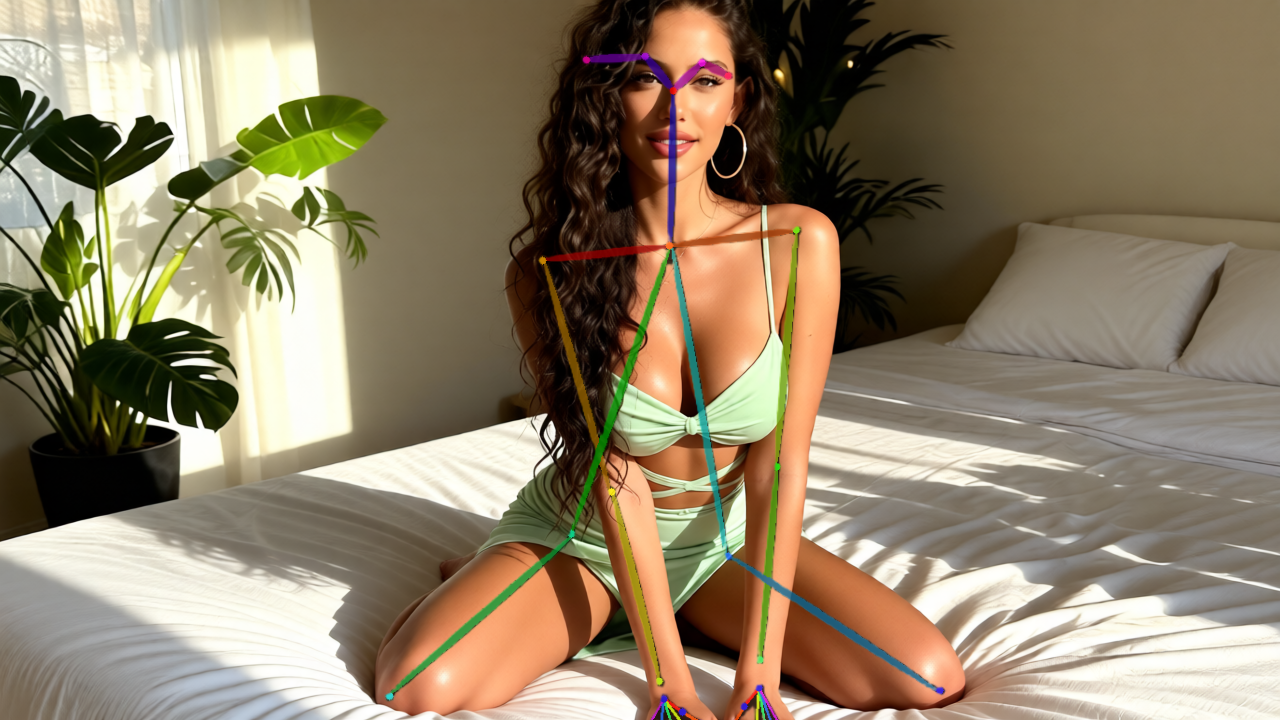
Table of Contents
1. Introduction
Creating a stunning AI character is only half the battle. The real challenge has always been consistency. Historically, the moment you try to change a character’s pose, the AI "hallucinates" changes to their facial features, outfit, and even the background. You’re often forced to choose between a great pose or a consistent character.
The Next Diffusion Hub eliminates the trade-off between movement and consistency with our new Character Repose Tool. This powerful, one-click feature allows you to maintain 100% character and environmental integrity while gaining total control over movement. By leveraging our integrated pose database within the Hub, you can effortlessly reposition your character into a walking, sitting, or action stance while ensuring the outfit, face, and background stay exactly as you designed them.
In this guide, we’ll show you how to transform a single image into a dynamic 4-pose carousel with just one click. This is the fastest way to generate high-engagement social media carousel posts from a single character image, allowing you to build professional-grade content and character sheets without losing any of your original design's detail
2. How to Launch: Getting Started in the Hub
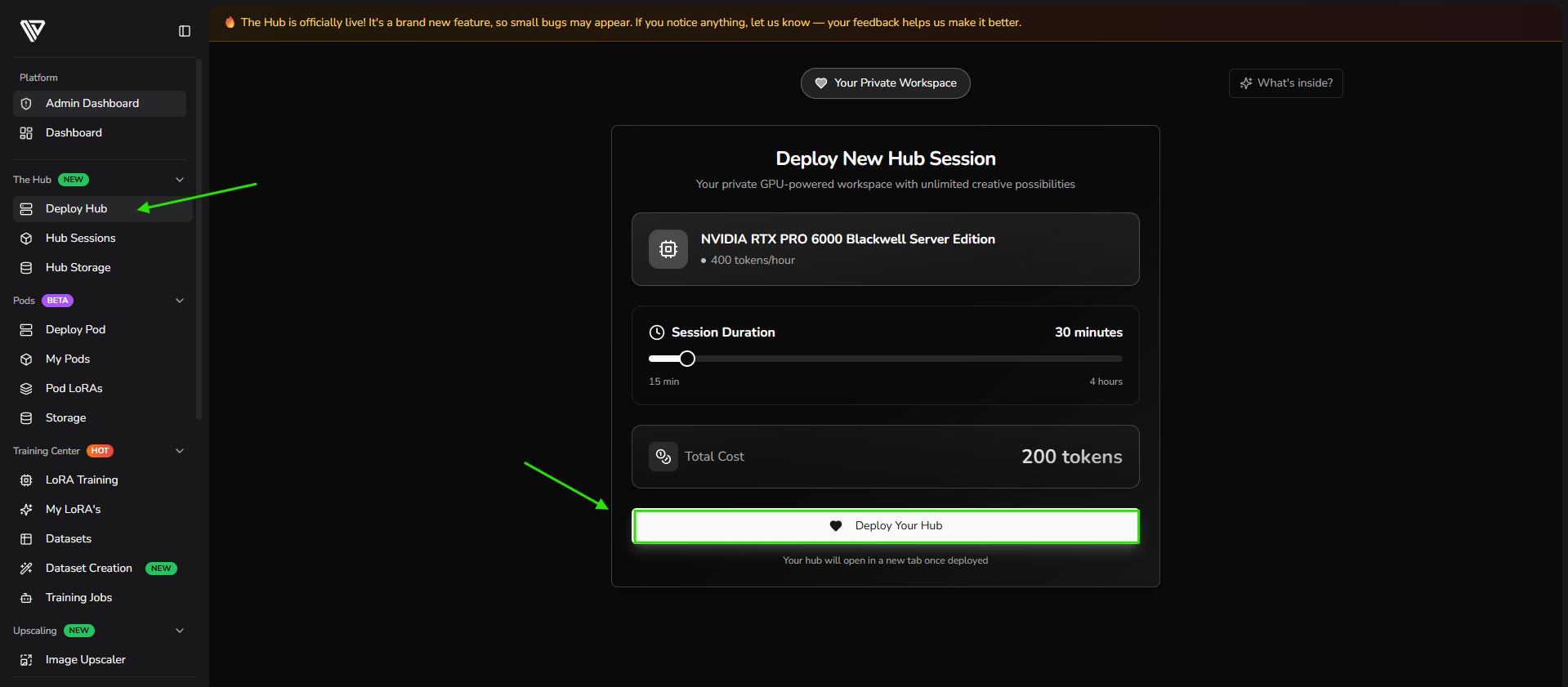
To begin using the Next Diffusion One-Click Character Pose Tool, you first need to access the Next Diffusion Hub. Here’s how to get started:
Step 1: Log into the Next Diffusion Hub
Navigate to the Next Diffusion website and log into your account. If you don’t have an account yet, you will need to sign up to gain access to the Hub’s features. Please note that an active subscription is required to use the new Character Repose Tool and explore its full range of pose-changing capabilities.
Step 2: Upload a Source Image
Once the Hub is ready, click on the Character Repose Tool icon in the sidebar. From here, you can choose to upload a new initial source image or select an existing creation from your storage.
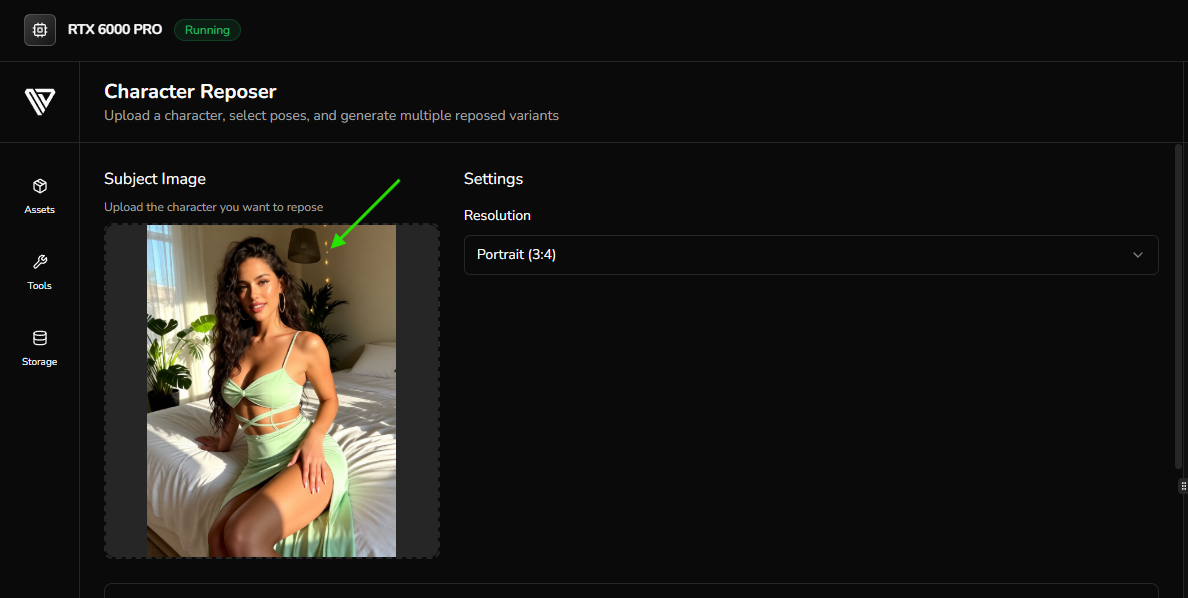
This source image serves as the foundation for your character’s new poses. For the best results, ensure your image is of high quality; this allows the tool to maintain the finest details of the face, outfit, and background. This workflow is especially handy for quickly generating high-consistency carousels for social media posts, giving you multiple professional assets from a single original file.
Step 3: Select Character Poses
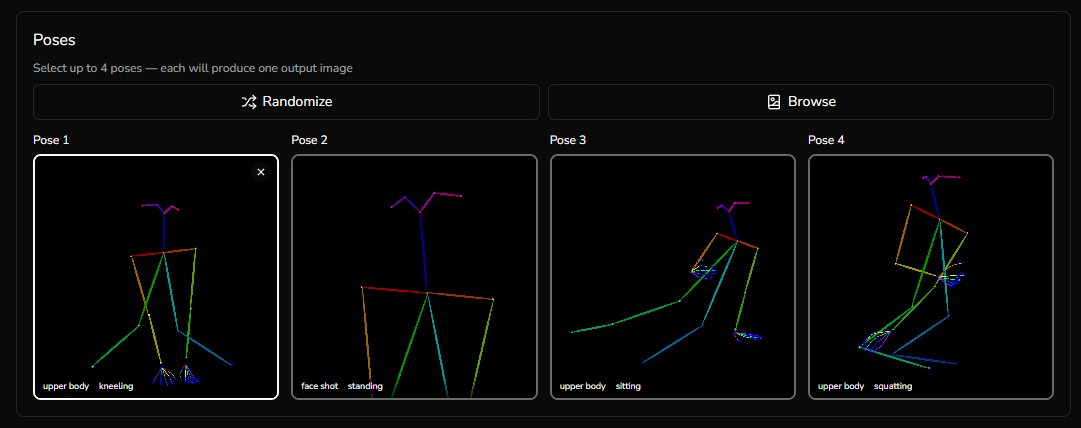
After selecting your image and setting your resolution, simply scroll down to the Pose section, where you can see the full list of available poses and select up to 4 for your generation. From here, you have two ways to create your carousel:
-
The Random Option: Click on the "Random" button to instantly assign 4 random poses from our database. This is a great way to discover new dynamic angles for your character quickly.
-
Manual Selection: You can choose each individual pose yourself from our extensive library of poses, ensuring you get the exact look you need for your project.
By following these steps, you’ll be ready to transform your static character into a dynamic ones
Step 4: Prompt Setup & AI Prompt Assistant
Your prompt guides the transformation—be clear about what stays, what changes, and the style you want to achieve. Firstly, scroll down to enter your prompt and clearly describe what you want to keep from the original image, what you want to change, and any specific details, style, or mood you’d like.
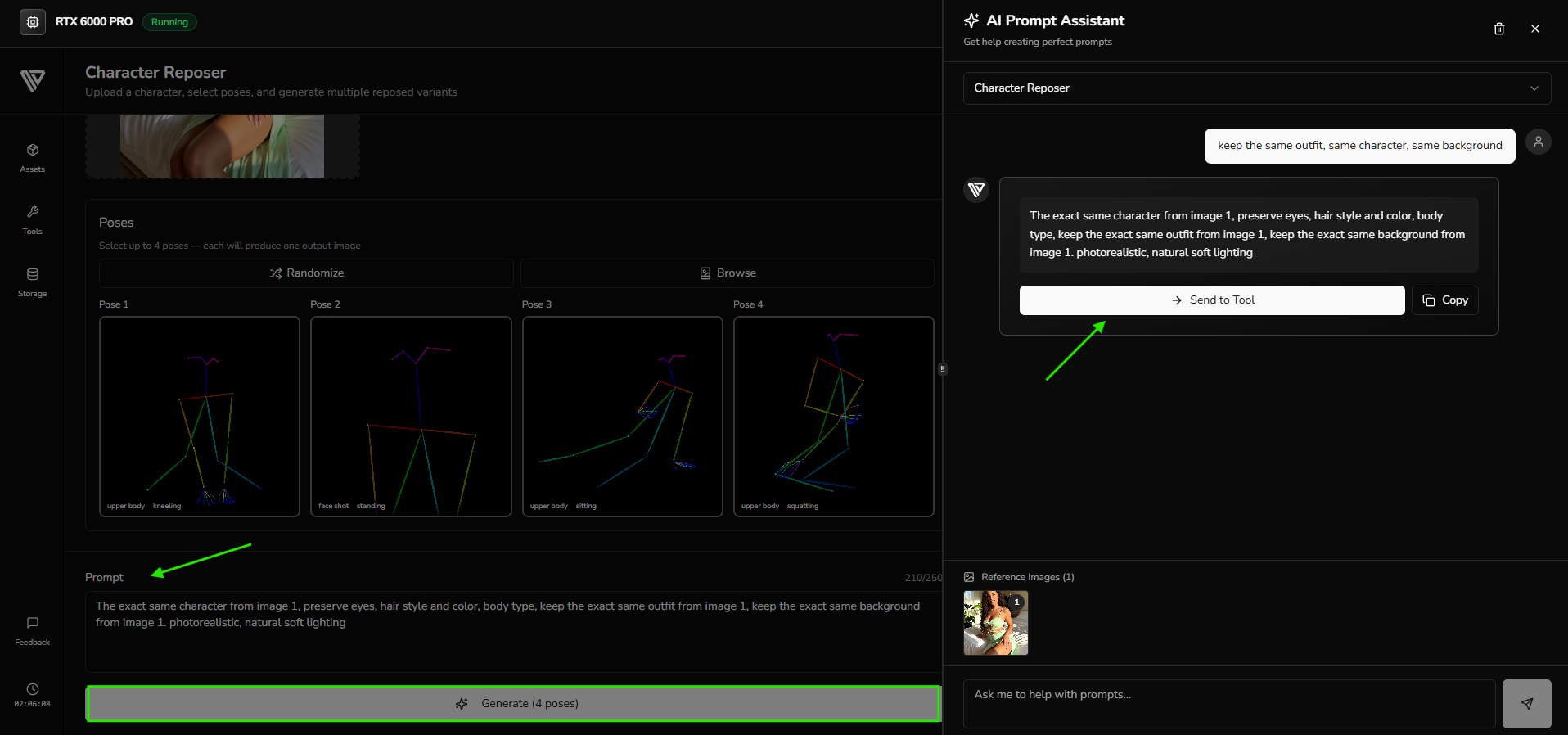
💡 Tip: For stronger results, use the chat in the top-right corner—it can analyze your uploaded image with a vision model and generate a solid starting prompt you can refine or use directly. Once your prompt is ready, send it to the tool and click Generate to begin.
3. Character Pose Transformation Examples
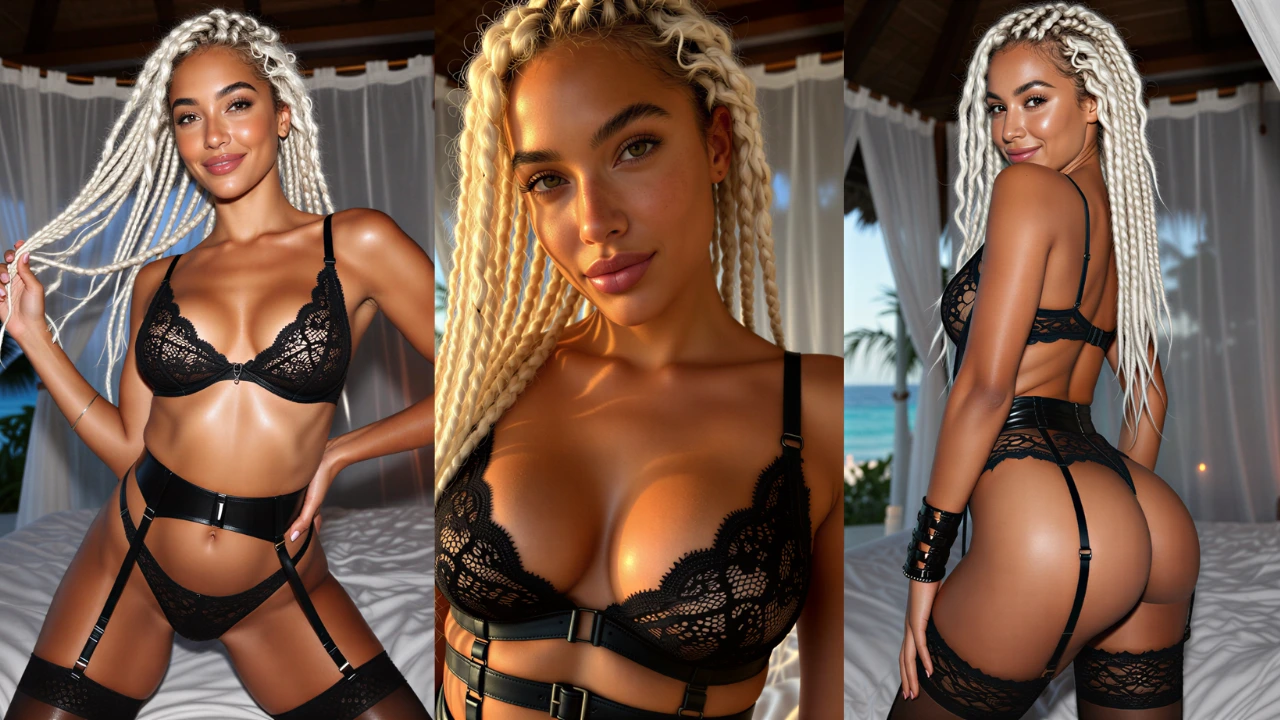
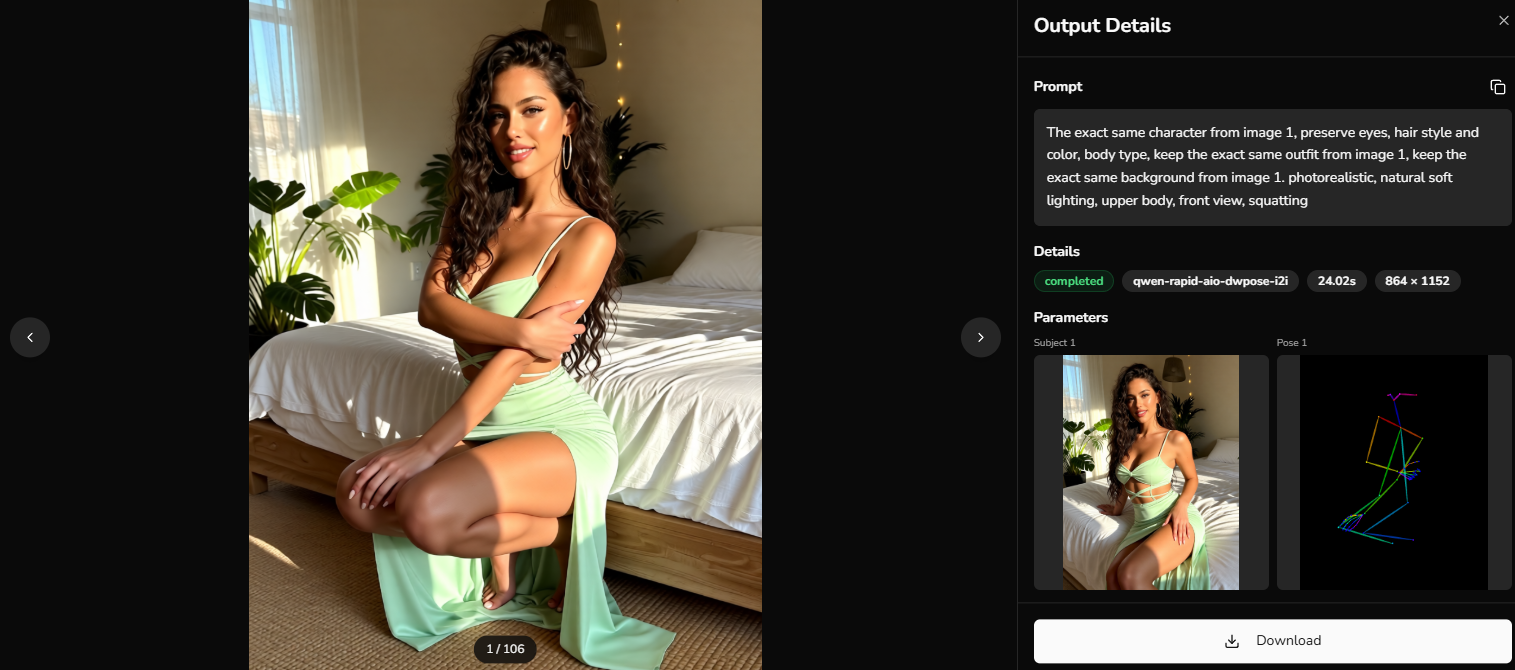
The Next Diffusion One-Click Character Pose Tool makes it easy to create engaging carousel content for social media, letting you showcase your character in multiple poses, actions, and moments while keeping their look consistent. Here are a few examples to inspire your ideas.
Below are some examples: on the right, you can see your initial image and the selected pose, while the main image shows the final pose-change result.
Example Character Pose Changes
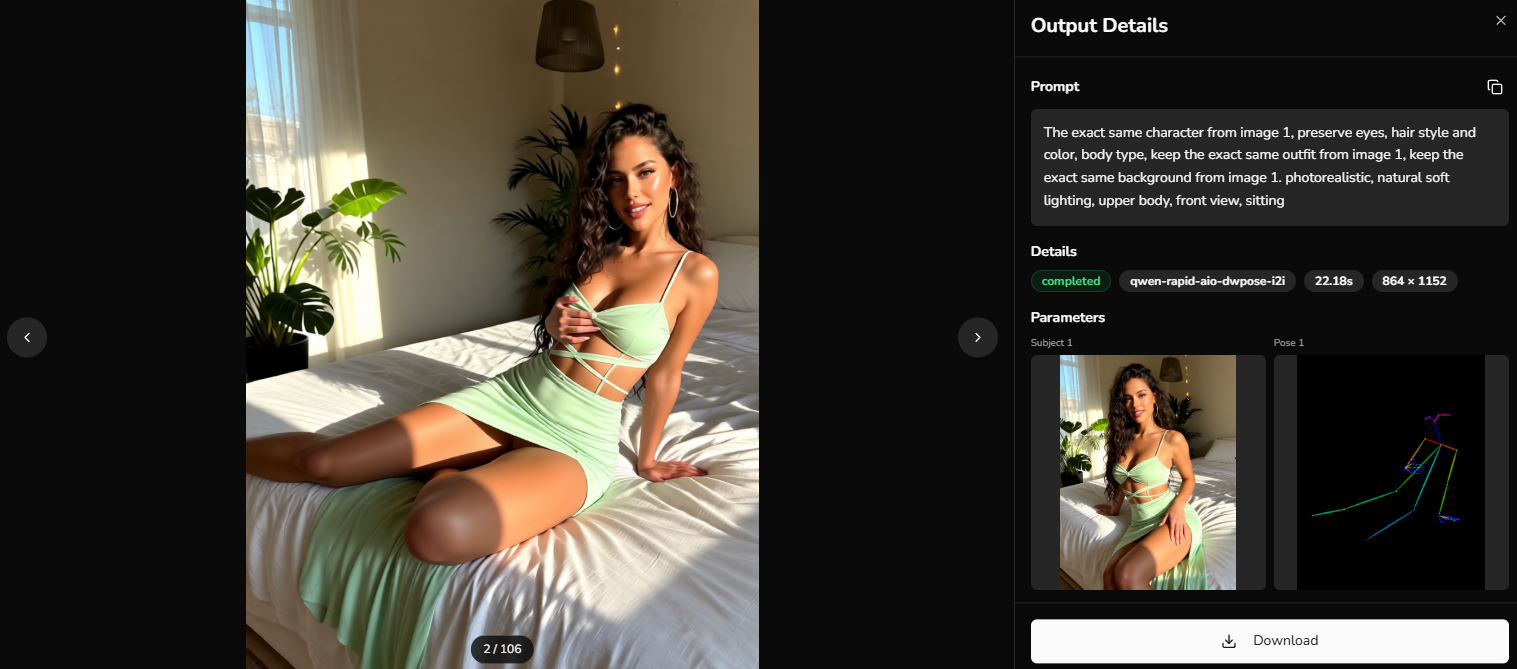
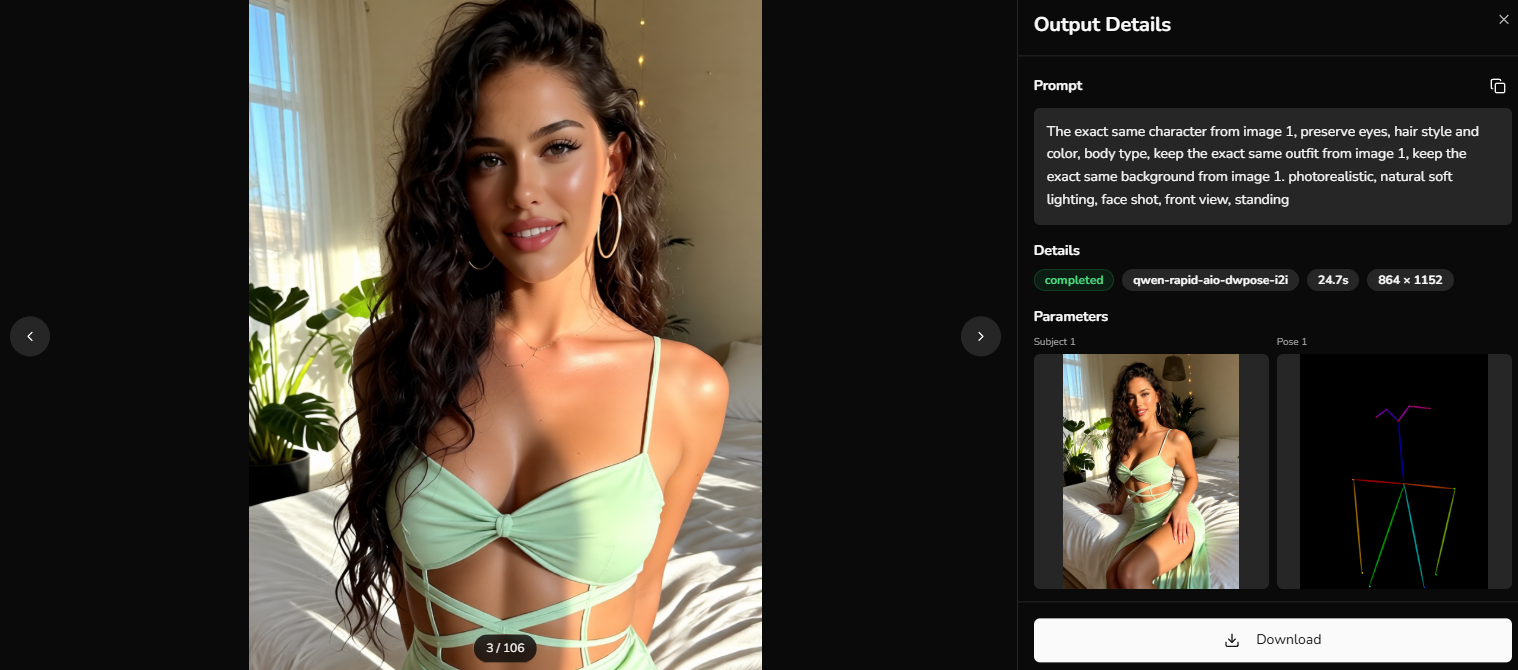
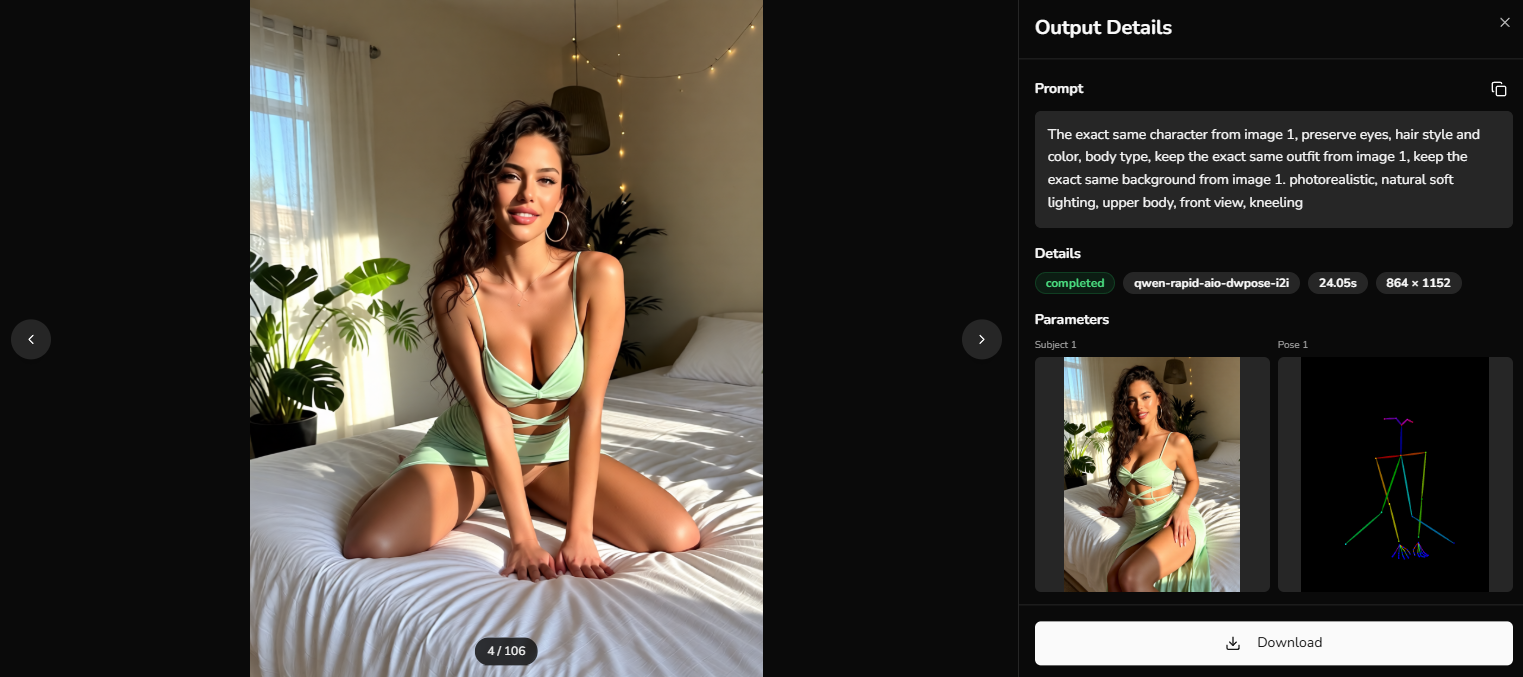
Also, note that this pose change is uncensored, so you’re free to experiment and have fun with your character’s pose changes!
5. Pro-Tips for Best Pose Change Results
To ensure you achieve the best results when using the Next Diffusion One-Click Character Pose Tool, consider the following pro-tips:
| Pro-Tip | Why It Matters |
|---|---|
| Source Quality | Always start with high-resolution images. Clearer images retain more detail, helping the tool capture your character’s nuances accurately. |
| Clean Backgrounds | Use simple backgrounds if you plan to composite your character later. This keeps the focus on the character and improves repose accuracy. |
| Experiment with Poses | Try different poses from the integrated library. Exploring combinations can lead to unexpected and exciting results. |
Following these tips will help you get the best results with the Next Diffusion One-Click Character Pose Tool, making your AI characters more dynamic and engaging.
6. Conclusion
The Next Diffusion One-Click Character Pose Tool makes it effortless to turn a single static image into a dynamic, multi-pose carousel while trying to preserve detail of your character and background. Whether you’re creating social media posts, concept art, or visual storytelling assets, this tool gives you full control over movement without sacrificing consistency. With high-quality images, clean backgrounds, and a little experimentation, you can produce professional, eye-catching results in just a few clicks. Don’t be afraid to explore—the pose changes are uncensored, letting you fully express your character’s personality and creativity.